
Amazon required attributes: what each product type asks for, and where to find it
Amazon required attributes depend on the product type: which fields block a listing, which become required conditionally, and how to find the list for yours.
By Vlad Bazarov · Updated 2 October 2026 · 7 min readAmazon's required attributes are the fields a listing cannot be created without. There is no single list for the whole store: the product type decides them. A phone case, a backpack and a vitamin each come with their own set, and Seller Central marks those fields as required in the form, so it will not let you submit while one is empty or holds a value Amazon does not accept. Everything else is optional to submit, but not optional to sell: filters, comparison tables and Amazon's shopping assistant read those fields too.
This guide covers the three kinds of attribute, how to find the list for your product type, and what goes wrong most often.
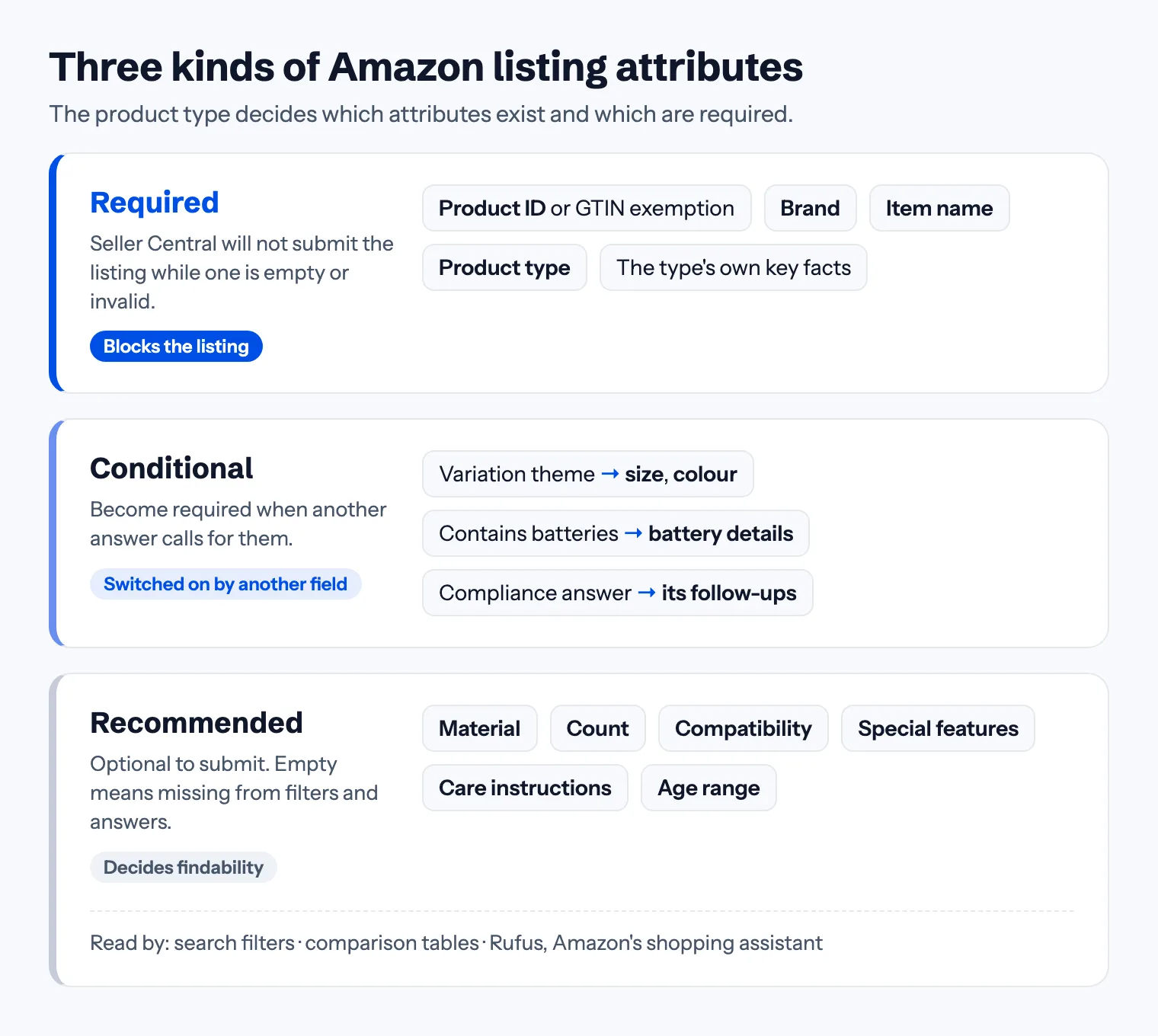
Three kinds of attribute
| Kind | What happens if it is empty | Typical examples |
|---|---|---|
| Required | The listing is not created, or the update is rejected | Product ID, brand, item name, product type, the type's own key facts |
| Conditional | Required only when another answer calls for it | Size and colour for a variation child, battery details |
| Recommended | The listing goes live, but it is missing from filters and answers | Material, count, compatibility, special features, care instructions |
The labels differ between Seller Central, the inventory templates and the API, but the logic is the same everywhere: a floor you must reach to submit, rules that switch more fields on, and a long list of fields that decide how findable the product is.
Required attributes: set by the product type
When you create a listing, the first real decision is the product type. It is not a label: it loads a definition that says which attributes exist for that kind of product, which of them are required, and which values each one accepts. Amazon's own developer documentation describes the same check for every submission: the required attributes are present, every value is valid, and the conditional rules are met.
Two consequences follow:
- A wrong product type shows up as missing fields. If a product is filed under a type that does not fit it, the form asks for attributes that make no sense for it, or does not offer the ones it needs. Choose the most specific type that describes the product.
- Valid means one of Amazon's values. Many attributes take a value from a list. A free-text value that matches nothing on that list fails validation or is ignored by filters, even when it reads fine to a person.
Conditional attributes: required when another answer says so
Some attributes are required only in context. The clearest case is variations: when a product is a child in a size or colour family, the variation theme makes those attributes required for every child. Compliance questions work the same way: answer that the product contains batteries and more battery fields appear and must be filled.
This is why a listing can fail on a field you never saw on the first screen. Fill the form in order and look again after each answer that changes what the product is.
Requirements change over time
Amazon adds required attributes, and occasionally relaxes them. In August 2023, for example, it made 274 attributes across 200 product types required for new listings in the US store, and said that new listings without valid values would not be added to the catalog. The same notice said the information was not required for listings already active.
That last point has a catch. A requirement that does not apply to a live listing can apply the moment you edit it: when Amazon UK made the recommended browse node mandatory, it applied to new listings and to any update of an existing one. An old listing can pass for years and then refuse a simple edit until the newly required field is filled.
Where to find the list for your product type
- The Add Products form. Pick the product type and the required fields are marked. It is the quickest check for one product.
- The inventory template. In Add Products, choose the spreadsheet upload and download the template for your product types. It is an Excel file that lists every attribute, required and optional, with a definition and the valid values where there is a list.
- Amazon's product type and attributes reference in Seller Central Help, a downloadable list of which attributes are required for which product types.
- The Listing Quality Dashboard (Inventory → Manage All Inventory → Listing Quality Dashboard). It shows live listings with missing attributes, grouped by what adding them would improve, such as search results or returns. Amazon notes that changes can take up to 48 hours to show.
- Fix Your Products / Search Suppressed and Inactive Listings for listings already hidden. Open the listing itself: the field-level error names the attribute, while the summary often only says something is missing.
Common mistakes
- Stopping at the required fields. The form lets you submit, so the job feels done. But a product with an empty material attribute never shows up when a shopper filters by material. More on this in how Rufus reads a listing.
- Values that contradict the copy. The attribute says 500 ml, the title says 16 oz, the infographic says 450 ml. Keep one fact in one form across every field.
- Keywords in attribute fields. An attribute holds one value. A list of search phrases in a special features field is not a feature, and a wrong value is worse than an empty one. Search phrases belong in the 250-byte backend field.
- Ignoring the template's valid values. "Navy blue" where the list offers "Navy" may pass the form and still miss the filter.
- Not re-checking after an edit. If an edit is rejected for a field you never filled, a requirement probably changed since the listing was created.
Checklist
- The product type is the most specific one that fits
- Every required field is filled with a valid value
- Variation children carry their theme's attributes (size, colour)
- Compliance answers are complete, including the fields they switch on
- Recommended attributes are filled wherever the fact is known
- Numbers and units match the title, bullets and images
You can check the copy fields against Amazon's limits in the free listing checker; the limits themselves are in our table of every listing limit.
Where Cobalt12 fits
Cobalt12 reads the product type definition for your product, fills the required and recommended attributes with values from Amazon's own lists, and writes the title, bullets and description from the same facts so the fields agree with each other. You can try it on your own product; the first listing is free.
This article reflects Seller Central and Amazon's published listing requirements as of October 2026. Required attributes differ by product type and marketplace and change over time, so check the template for yours before you list.